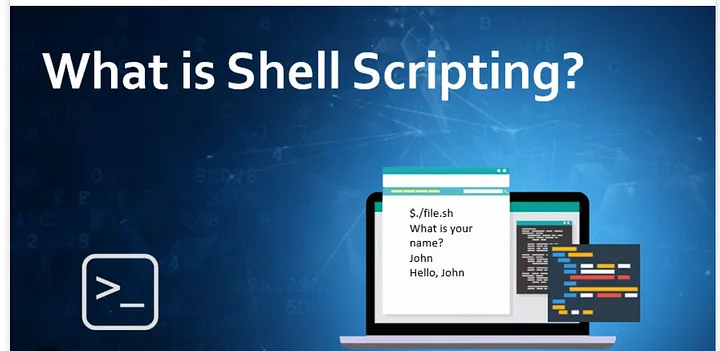
🤔 What is Shell Scripting?
At its core, shell scripting is a way to write and execute a series of commands in a script or program. These commands are typically written in a shell language like Bash. Shell scripts empower us to automate, streamline, and orchestrate various tasks within our DevOps workflows. 🤖🎯
💼 Uses as a DevOps Engineer:
Here are some cool ways we DevOps engineers leverage shell scripting:
1️⃣ Automation, Automation, Automation: 🤖🤖
Automate deployments: Script your deployment processes, making them repeatable and reliable.
Configuration management: Manage server configurations and updates through scripts.
Backup and data management: Automate data backups and archiving.
2️⃣ System Monitoring and Maintenance: 📊🔍
Build monitoring scripts: Keep an eye on system metrics and performance.
Schedule routine maintenance tasks: Automate cleanup and optimization jobs.
3️⃣ Error Handling and Recovery: 🚨💥
Create error-handling scripts: Detect issues and take predefined actions.
Implement fault tolerance: Automatically recover from errors and failures.
4️⃣ Custom Tools and Utilities: 🛠️🔨
Build custom DevOps tools: Tailored scripts for specific needs.
Integrate third-party services: Bridge gaps between tools and platforms.
5️⃣ CI/CD Pipelines: 🛣️🚚
- Script CI/CD workflows: Automate code builds, testing, and deployments.
6️⃣ Reporting and Logging: 📈📜
Generate reports: Create logs and reports on system status and changes.
Send alerts: Notify teams about important events or issues.
By using shell scripts, we boost efficiency, reduce human error, and have more time to focus on the strategic aspects of our DevOps work. It's like having a trusty sidekick 🦸♂️ that handles the repetitive tasks while we tackle the exciting challenges. 🙌🌟
So, what are your favorite shell scripting tricks or use cases in the world of DevOps? Let's share knowledge, insights, and lots of smiley emojis! 😄🤝 #DevOps #ShellScripting #Automation #Efficiency 💡🔗
🔒 Step-by-Step Guide: Creating Backups in Shell Scripts 📂📦
Identify What to Backup: Determine the files or directories you want to back up. This could include application data, configuration files, or any other critical information.
Choose a Backup Location: Decide where you want to store your backups. Common options include local directories, network storage, or cloud storage solutions.
Create a Timestamp: Generate a timestamp to include in the backup folder or file name. This helps organize and track your backups.
Example (using
datecommand):bashCopy codetimestamp=$(date "+%Y-%m-%d_%H-%M-%S")Create the Backup Command: Use a tool like
tar(for creating compressed archives) orrsync(for syncing and backup) to create the backup command. Customize it based on your requirements.Example (using
tarfor creating a compressed backup):bashCopy codebackup_location="/path/to/backup_directory" source_directory="/path/to/source" backup_filename="backup_$timestamp.tar.gz" tar -czvf "$backup_location/$backup_filename" "$source_directory"Check the Backup Process: Ensure the backup process was successful by checking the exit status of the command. If it's non-zero, there may have been errors during the backup.
Example:
 bashCopy codeif [ $? -eq 0 ]; then
     echo "Backup successful."
 else
     echo "Backup failed. Check for errors."
 fi
Automation (Optional): To make backups routine, consider setting up a cron job that runs your backup script at scheduled intervals.
Example (to schedule a daily backup at midnight):
bashCopy code0 0 * * * /path/to/backup_script.shLogging and Notifications (Optional): Add logging and notification mechanisms to your script to receive alerts or keep records of backup activities.
Example (sending an email notification):
bashCopy codeecho "Backup completed at $timestamp" | mail -s "Backup Report" your@email.comTest the Backup and Recovery: Periodically test the backups to ensure that you can restore your data if needed.
Documentation: Document your backup procedures, including the location of backups, how to restore from them, and any other important information.
Security Considerations: Ensure that your backup locations and procedures are secure. Use encryption for sensitive data and restrict access to backups.
🚀 Mastering Basic Shell Scripting Commands 📜🔧
Are you ready to embark on your journey into the world of shell scripting? 🐚✨ In this blog, we'll explore some fundamental shell commands and provide practical examples to get you started on your scripting adventure.
1. echo - Let's Start Talking
The echo command is like your script's voice. It displays messages or variables to the terminal.
Example:
bashCopy codeecho "Hello, World!"
2. if - Conditional Execution
The if statement allows you to execute commands conditionally based on the result of a test.
Example:
bashCopy codeif [ $age -ge 18 ]; then
   echo "You are an adult."
fi
3. for - Looping Like a Pro
With the for loop, you can iterate through a list of items.
Example:
bashCopy codefruits=("apple" "banana" "cherry")
for fruit in "${fruits[@]}"; do
   echo "I like $fruit."
done
4. while - Repeated Action
The while loop allows you to execute a set of commands repeatedly as long as a condition is true.
Example:
bashCopy codecount=1
while [ $count -le 5 ]; do
   echo "Count: $count"
   ((count++))
done
5. read - User Interaction
The read command lets you read input from the user.
Example:
bashCopy codeecho "Enter your name: "
read name
echo "Hello, $name!"
6. grep - Searching for Patterns
Use the grep command to search for patterns in text.
Example:
bashCopy codecat file.txt | grep "keyword"
7. sed - Text Manipulation Magic
The sed command is a stream editor for text manipulation.
Example:
bashCopy codesed 's/old_string/new_string/g' input.txt > output.txt
8. awk - Text Processing Wizardry
awk is a text processing tool for data extraction and reporting.
Example:
bashCopy codecat data.txt | awk '{print $1, $3}'
9. cut - Trimming Text
Use cut to remove sections from lines of files.
Example:
bashCopy codecut -d "," -f 1,3 file.csv
10. mv - Moving and Renaming
The mv command moves or renames files and directories.
Example:
bashCopy codemv file.txt new_location/
mv old_name.txt new_name.txt
11. rm - Removing Files
The rm command deletes files or directories.
Example:
bashCopy coderm file.txt
rm -r directory/
12. touch - Creating Empty Files
Create empty files using the touch command.
Example:
bashCopy codetouch new_file.txt
13. chmod - Changing Permissions
The chmod command is for changing file permissions.
Example:
bashCopy codechmod +x script.sh
14. cp - Copying Files and Directories
cp is used for copying files and directories.
Example:
bashCopy codecp file.txt backup/
15. mkdir - Creating Directories
Use mkdir to create directories.
Example:
bashCopy codemkdir new_directory
With these basic shell commands in your toolkit, you're well on your way to becoming a shell scripting pro. 🌟 Whether you're automating tasks, processing data, or managing files, the possibilities are endless! 💡📦🔍